Your computer's webcam.
Now your iPhone or iPad's camera.
CamHop makes your Mac or PC's webcam and mic your iPhone's own. Open a link, type a PIN, done.


Three steps.
No app on the computer.
The computer side is a web page. Your camera and sound go straight from the browser to the iPhone over your own Wi-Fi.
 Desktop Camera
Turn it on
On the iPhone, open CamHop and switch on Desktop Camera (and Desktop Microphone, if you want the computer's sound too).
Open your link
AirDrop or copy the link to the computer, or scan the QR code with a phone or tablet. It opens in Chrome, Edge or Safari with your iPhone's connection filled in.
Type the PIN
Enter the six digits the iPhone shows. That's it: apps that use the camera now see your computer's webcam.
One webcam.
Every camera app.
Whatever the computer's camera sees, the iPhone's apps get, live.
 LIVE1080p
Video calls
Your desk webcam's angle and light, in the call apps on your iPhone.
 LIVE1080p
Streaming
A camera that stays put on your desk, for streams you run from the iPhone.
 LIVE1080p
Show your desk
Point a USB webcam at your desk, your hands or a whiteboard. The iPhone's apps see what it sees.
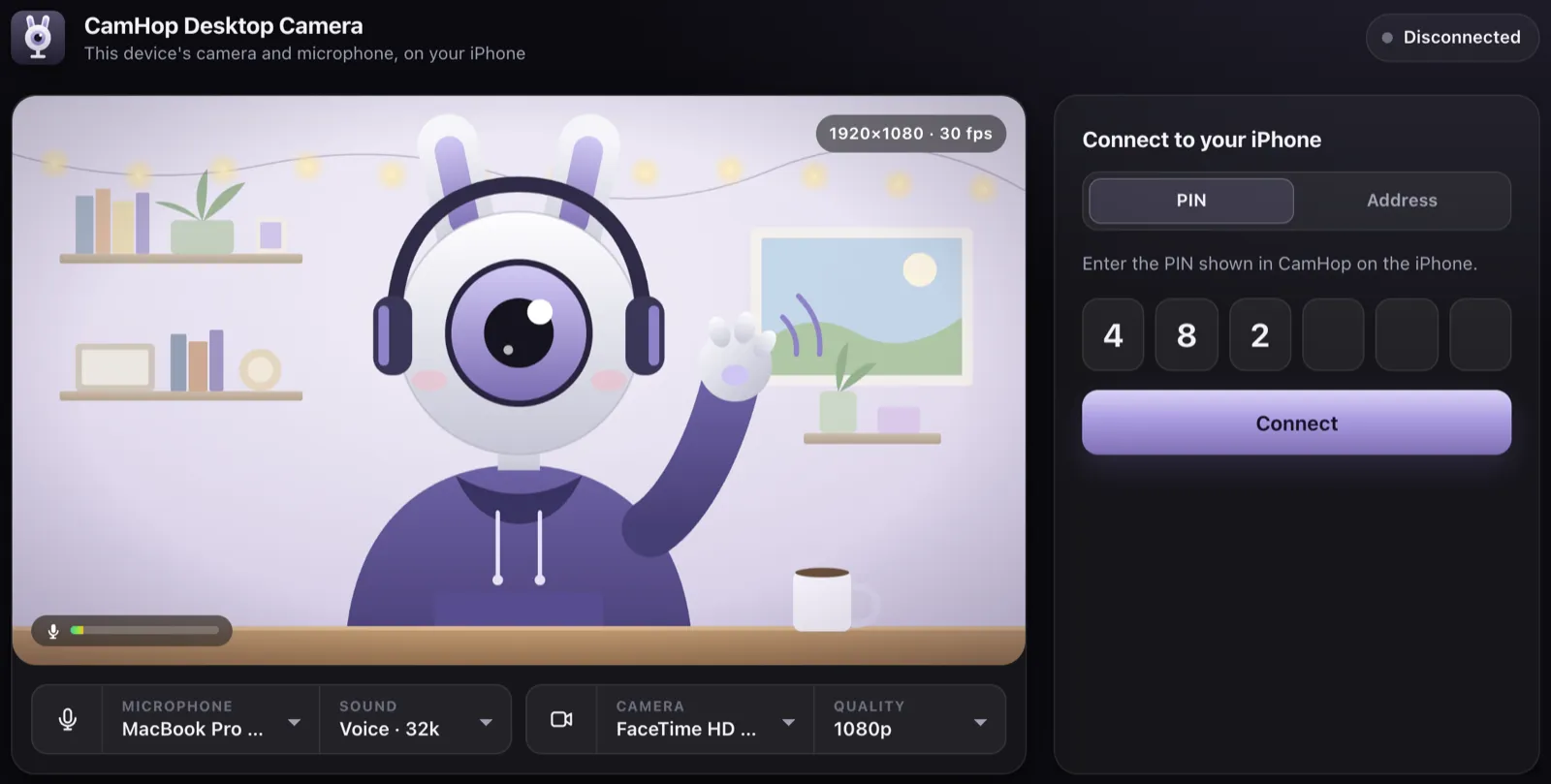
Your camera, in a browser tab
Pick the webcam and microphone you want, see the picture before you connect, and change either one while you're live.
- Up to 1080p, or 720p and 480p for slower Wi-Fi
- Sound tuned for voice, or high quality for music
- Mute the microphone or pause the camera with one click
- The connection's speed and frame rate, live
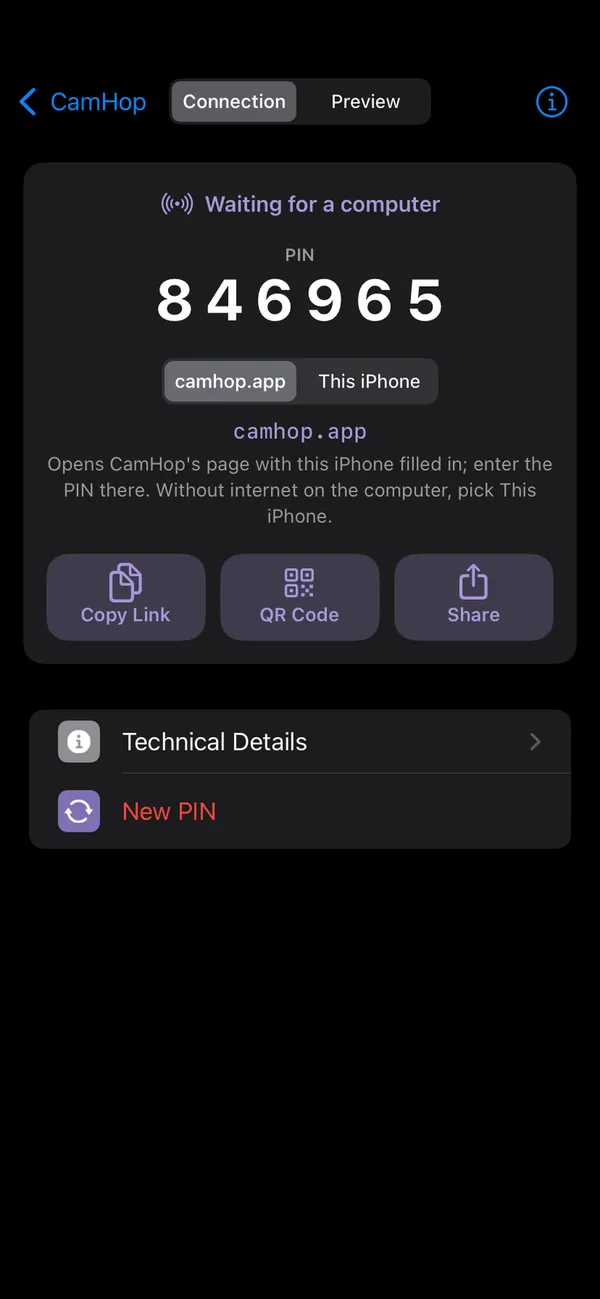
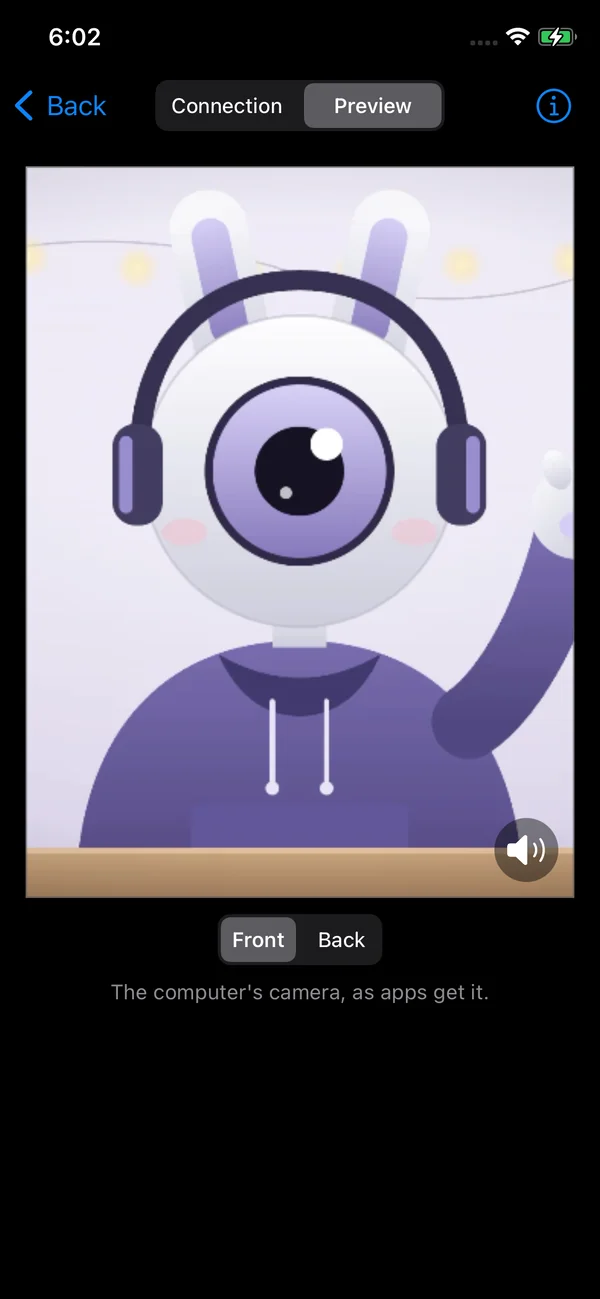
Pairing that takes seconds
The iPhone shows its link, a QR code and a PIN on one card. Scan it, AirDrop it, or copy it. Each computer needs the PIN before it can send anything.
- The PIN changes whenever you ask for a new one
- One computer at a time, and repeated wrong PINs lock it out
- A live preview of what apps receive
- Status at a glance: connected, live, and in which app
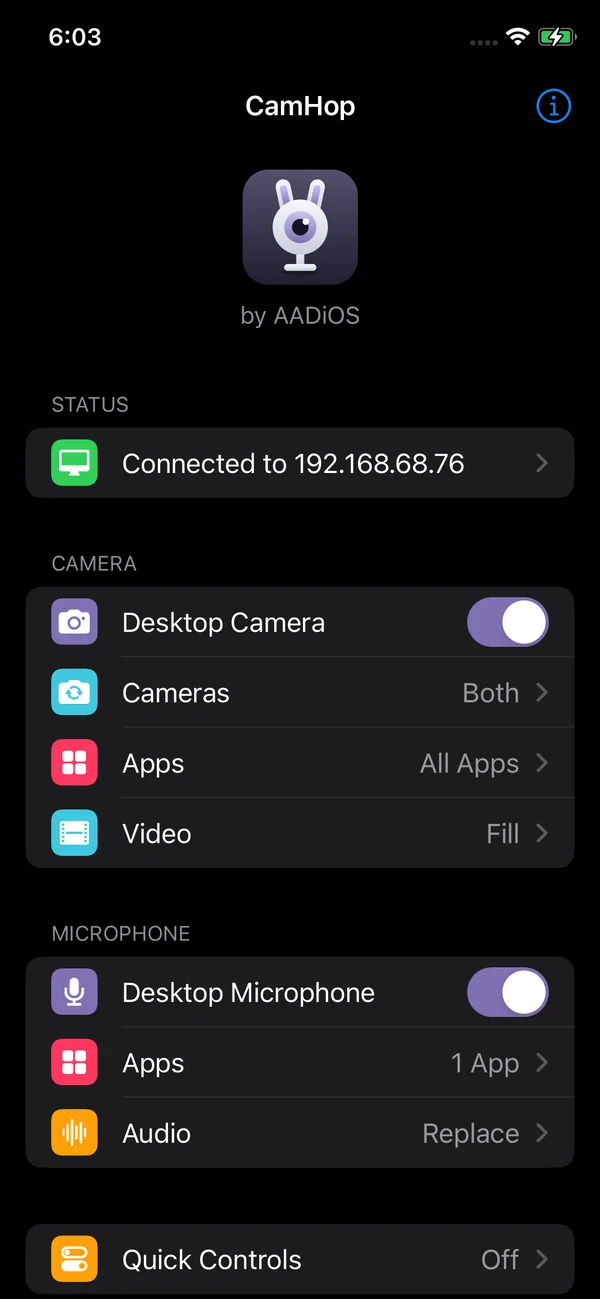
You choose where it goes
Replace the front camera, the back camera, or both. Keep the iPhone's own camera in the apps you pick, and choose which apps hear the computer's microphone.
- Switch back to the iPhone's camera from Control Center
- A floating button, or both volume buttons together
- Fill, fit, rotate, mirror, zoom and pan the picture
A better camera,
already on your desk.
Works in your apps
Video calls, streaming and recording apps see your computer's webcam as the iPhone's camera.
The microphone too
Send the computer's microphone to the apps you choose, alone or mixed with the iPhone's, kept in step with the picture.
Nothing to install
The computer only needs a browser: Chrome, Edge or Safari, on a Mac, Windows or Linux.
Fast on your Wi-Fi
Video goes straight from the browser to the iPhone, with the delay of a video call, not of a cloud service.
Per camera, per app
Front, back or both cameras, and an app list for the ones that should keep the iPhone's own.
Framing controls
Fill, fit or stretch, rotate in quarter turns, mirror, zoom and pan, applied as apps receive the picture.
Quick controls
Back to the iPhone's camera and microphone in one tap: Control Center, a floating button or the volume buttons.
Works offline too
No internet on the network? The iPhone serves the page itself, at an address you can type.
See what apps see
The Preview shows the picture apps receive, framing and all, before you open one.
It stays
on your Wi-Fi.
Your picture and sound never pass through a server. The computer and the iPhone talk to each other directly, the way a video call does.
- Encrypted end to endVideo and sound travel encrypted from the browser to the phone.
- A PIN for every computerNothing on your network can send the iPhone a picture without the PIN it shows.
- Your connection stays in the linkcamhop.app only serves the page. The details that find your phone stay in your browser and are never sent to the site.
- No account, no trackingNothing to sign up for. This site has no analytics and no cookies.
What you need
iPhone
- Jailbreak
- Rootless, such as Dopamine or palera1n
- iOS
- 15 and later
- Network
- The same Wi-Fi as the computer
- Settings
- In CamHop's own app on the home screen, and up to iOS 17 in the Settings app
Computer
- Browser
- Chrome, Edge or Safari
- System
- macOS, Windows or Linux
- Camera
- Any webcam the browser can use, built in or USB
- Install
- Nothing
Questions
Do I need to install anything on the computer?
No. The computer side is a web page, opened from the link the iPhone gives you. Any recent Chrome, Edge or Safari works.
Which apps see the computer's camera?
Apps that use the iPhone's camera: video calls, streaming, recording and the Camera app. You can leave some apps on the iPhone's own camera, and pick the front, the back or both cameras.
Does it work without internet?
Yes. The link normally opens CamHop's page on camhop.app, which needs the computer to be online. Without internet, choose This iPhone on the iPhone: the page then comes from the iPhone itself, at an address you can type. The browser warns once about the iPhone's certificate; continue to the page.
Does it work on iPad?
CamHop is made for jailbroken iPads too: wherever this page says iPhone, read iPad.
Can a phone or tablet be the camera instead of a computer?
Yes. Open the link in Chrome, Edge or Safari on any device with a camera on the same Wi-Fi: a computer, a tablet or another phone. Only the iPhone the link belongs to can't open it for itself.
Is my video sent to a server?
No. Video and sound go straight from the computer to the iPhone over your Wi-Fi, encrypted. camhop.app only serves the page.
Can I use the computer's microphone too?
Yes. Turn on Desktop Microphone and pick the apps that should hear it. It can replace the iPhone's microphone or be mixed with it.
It won't connect. What should I check?
Both devices need to be on the same network. Guest and hotel Wi-Fi often keep devices apart, which stops the connection; a home network or the iPhone's own hotspot works. Browser extensions that hide your local address from WebRTC can also block it, and the page says so when that happens.
Hop your camera
to your iPhone.
CamHop is on Havoc now. Questions? We read every message.